... and I decided to follow my mind into a new adventure :)
With the first of August I started as Systems Engineer at Datastax (http://www.datastax.com) and launched a new blog (http://datatomix.com)!
So feel free to check both out!
I look forward to meet some of you in person and to have chat about the new cool shit :)
Wednesday, August 6, 2014


Thursday, December 12, 2013
vCAC - How to use vCenter Orchestrator as deployment option in vCAC
Since yesterday vCloud Automation Center is GA, what gives me the chance to write some news using vClou Automation Center and the vCenter Orchestrator. First thing to note is that vCenter Orchestrator comes included in vCloud Automation Center and this allows a real quick service integration.
Most of my customer ask: Why should I use the vCloud Automation Center workflow for the virtual machine deployment, if vCenter Orchestrator offers the same capability? To be honest, I think using vCloud Automation Center only is the fastest way to deploy and manage virtual machine, hardware hosts and external cloud instances...
But if you want to deploy virtual machines using vCenter Orchestrator here is how:
At first you have to create an Advanced Services vCenter endpoint.

This creates a vCenter endpoint in the vCenter Orchestrator which allows you to create services. Now you can create a Resource Type element for a new virtual machine (VC:VirtualMachine).

The next step is the creation of a Service Blueprint, using the vCenter Orchestrator workflow.

After the blueprint form is customized you can add Resource Actions to allow operations on the new object (VC:VirtualMachine). In my lab I choose "Power On" and "Power Off" using the vCenter Orchestrator Workflows.

The last step you have to do is to publish the Service Blueprint and the Resource Actions.

Congrats! This is you first service :) To allow the users to access this service as part of their Catalog you have to create an item in: "Administration" -> "Catalog Management" -> "Services" and then you have to entitle all elements for this service under "Administration" -> "Catalog Management" -> "Entitlements".

With this entitlements your users are now able to order the virtual machine using vCenter Orchestrator as deployment option. With the Actions they can also use the vCenter Orchestrator workflows to manage the virtual machine.

Have fun!
Most of my customer ask: Why should I use the vCloud Automation Center workflow for the virtual machine deployment, if vCenter Orchestrator offers the same capability? To be honest, I think using vCloud Automation Center only is the fastest way to deploy and manage virtual machine, hardware hosts and external cloud instances...
But if you want to deploy virtual machines using vCenter Orchestrator here is how:
At first you have to create an Advanced Services vCenter endpoint.

This creates a vCenter endpoint in the vCenter Orchestrator which allows you to create services. Now you can create a Resource Type element for a new virtual machine (VC:VirtualMachine).

The next step is the creation of a Service Blueprint, using the vCenter Orchestrator workflow.

After the blueprint form is customized you can add Resource Actions to allow operations on the new object (VC:VirtualMachine). In my lab I choose "Power On" and "Power Off" using the vCenter Orchestrator Workflows.

The last step you have to do is to publish the Service Blueprint and the Resource Actions.

Congrats! This is you first service :) To allow the users to access this service as part of their Catalog you have to create an item in: "Administration" -> "Catalog Management" -> "Services" and then you have to entitle all elements for this service under "Administration" -> "Catalog Management" -> "Entitlements".

With this entitlements your users are now able to order the virtual machine using vCenter Orchestrator as deployment option. With the Actions they can also use the vCenter Orchestrator workflows to manage the virtual machine.

Have fun!
Friday, September 27, 2013
vCAC - how to change the VM network after provisioning
Sometimes we are asked for some special test cases in pilot scenarios. On of my colleagues asked me how we can change a virtual machine network after the virtual machine is provisioned in vCAC. The reason for this was a provisioning environment in which the virtual machine is deployed in a special network and attached to the production afterwards.
So at first you have to set the "ExternalWFStubs.MachineProvisioned" property at the virtual machine blueprint.

As an additional input i created a custom property called "VirtualMachine.NewNetwork" which holds the name of the new network. I created a custom property with a dropdown list (Values: VM Network, DVPortGroup) to let the user select the network.
Next step was the creation of a powershell script (ChangeNetwork.ps1):
#Variable detection
$OldNetwork = $Properties["VirtualMachine.Network0.Name"]
$NewNetwork = $Properties["VirtualMachine.NewNetwork"]
$Hostname = $Properties["VirtualMachineName"]
#Check for the variables
$OldNetwork >> C:\test.txt
$NewNetwork >> C:\test.txt
$Hostname >> C:\test.txt
#Calls the powershell actions
Add-PSSnapin VMware.VimAutomation.Core
Connect-VIServer YourVcenterServer -User YourUser -Password YourPass
Get-VM -Name $Hostname | Get-NetworkAdapter | Where {$_.NetworkName -eq $OldNetwork }|Set-NetworkAdapter -NetworkName $NewNetwork -Confirm:$false
I uploaded the powershell script using the CloudUtil command line:
CloudUtil File-Import -n ChangeNetwork -f ChangeNetwork.ps1
Now i created a new workflow in the Design Center for the MachineProvisioned stub like Zack described here: Calling Powershell/PowerCLI Scripts from a vCAC workflow.
Please note that you need to initialize the Dictionary array like described in the blog post. After sending the workflow to the vCAC server the stub should call the Powershell script and change the network adapter from "DVPortGroup" to "VM Network".

After the deployment (my template has DVPortGroup as network when deployed)

the network should change with a reconfigure task.

Have fun with this!
So at first you have to set the "ExternalWFStubs.MachineProvisioned" property at the virtual machine blueprint.

As an additional input i created a custom property called "VirtualMachine.NewNetwork" which holds the name of the new network. I created a custom property with a dropdown list (Values: VM Network, DVPortGroup) to let the user select the network.
Next step was the creation of a powershell script (ChangeNetwork.ps1):
#Variable detection
$OldNetwork = $Properties["VirtualMachine.Network0.Name"]
$NewNetwork = $Properties["VirtualMachine.NewNetwork"]
$Hostname = $Properties["VirtualMachineName"]
#Check for the variables
$OldNetwork >> C:\test.txt
$NewNetwork >> C:\test.txt
$Hostname >> C:\test.txt
#Calls the powershell actions
Add-PSSnapin VMware.VimAutomation.Core
Connect-VIServer YourVcenterServer -User YourUser -Password YourPass
Get-VM -Name $Hostname | Get-NetworkAdapter | Where {$_.NetworkName -eq $OldNetwork }|Set-NetworkAdapter -NetworkName $NewNetwork -Confirm:$false
I uploaded the powershell script using the CloudUtil command line:
CloudUtil File-Import -n ChangeNetwork -f ChangeNetwork.ps1
Now i created a new workflow in the Design Center for the MachineProvisioned stub like Zack described here: Calling Powershell/PowerCLI Scripts from a vCAC workflow.
Please note that you need to initialize the Dictionary array like described in the blog post. After sending the workflow to the vCAC server the stub should call the Powershell script and change the network adapter from "DVPortGroup" to "VM Network".

After the deployment (my template has DVPortGroup as network when deployed)

the network should change with a reconfigure task.

Have fun with this!
Monday, July 1, 2013
vCAC - What if you need vCO on every blueprint?
Based on my blog posts you know already how to interact with vCenter Orchestrator from a vCloud Automation Center blueprint. When you use this interaction there will be the day when you ask yourself: "How can i use different workflows with the same stub?".
To be honest, it looked to me as there is only one external call possible at the "ExternalWFStubs.MachineProvisioned" stub, but what if i can create another stub based on this provisioning state? Something like "ExternalWFStubs.MyMachineStateEqualMachineProvisioned"? Heureka!
Here is how:
First you have to install the CDK plug-in for Visual Studio. This enables the vCAC workflow generator and allows you to generate a "StateChange" workflow with your own stub name.

I named my workflow: "MyShinyWorkflow" and this is shown as naming in the solution explorer.

Now you can build everything you want in Visual Studio... or you can upload the empty workflow in your vCAC like described in the .txt file (just open the solution in a windows explorer and copy the files).


To be honest, it looked to me as there is only one external call possible at the "ExternalWFStubs.MachineProvisioned" stub, but what if i can create another stub based on this provisioning state? Something like "ExternalWFStubs.MyMachineStateEqualMachineProvisioned"? Heureka!
Here is how:
First you have to install the CDK plug-in for Visual Studio. This enables the vCAC workflow generator and allows you to generate a "StateChange" workflow with your own stub name.

I named my workflow: "MyShinyWorkflow" and this is shown as naming in the solution explorer.

Now you can build everything you want in Visual Studio... or you can upload the empty workflow in your vCAC like described in the .txt file (just open the solution in a windows explorer and copy the files).
Cloudutil Workflow-Install -f MyShinyWorkflow.xaml -n MyShinyWorkflow

Don´t forget to copy the .xml file to the /xmldb folder in your vCAC file location. After that you are able to "design" your workflow in the vCAC Design Center.

With this new workflow you can set a custom property for example (keep in mind that this is only a simple one)

Now you can upload the workflow it will set a new custom property when the workflow is called.

Just add your stub (mine is named: ExternalWFStubs.MyMachineStateEqualMachineProvisioned) to the blueprint you want to enhance.

After the machine is requested the custom property is set once the "MachineProvisioned" stated is reached.

Now you have the power!
Monday, May 6, 2013
vCloud Automation Center - a LabManager "rebirth"?
This week i had a very interesting conversation with a fellow at VMware. We talked about LabManager migrations and my experience in customer environments, when i was a consultant. There were two stages of migrations from VMware LabManager to vCloud Director in the past:
1. The organizational and administrative design
2. The migration of the virtual environment
The first one wasn´t easy to define, especially in large environments, caused by the different layers of administration. In VMware LabManager we had:
In vCloud Director we have:
So there is an organizational layer missed. To be honest, there is one: the SYSTEM organization, but: you can´t limit the administrator account. So there is no chance to give the SYSTEM organization to the end-user or customer.
In fact the migration from VMware LabManager to vCloud Director needs to compromise.
The migration of the virtual machines wasn´t easy too, because you needed to enable the virtual machine operations in the VMware LabManager database what doesn´t sounds good without a tested and released tool.
Using vCloud Automation Center since the last DynamicOps version we talked about the administrative layers and a possible implementation. After a few minutes i thought that this could be the answer to the organizational migration of LabManager including Self-Service, API support (REST) and different endpoints (vSphere, vCloud) without administer "real" resources in vCloud Director as a SYSTEM administrator.

With this combination of resources delivered by the "internal IT" you are now able to create your own business logic for your lab environments. Starting with the Enterprise Groups to add resources to your environment you are able to build your Provisioning Group (like Workspaces in LabManager):

Based on those you can add Resource Reservations for this particular group:

And with all that in place you can now add the Blueprints (like Configurations in LabManager):

With the Self-Service Portal in vCloud Automation Center you are now able to control (based on the rights) the virtual machines, making snapshots or destroy them.
As you can see this is just a simple example, not explaining API methods or workflow enhancements (Microsoft TFS integration for example) but it should be a good way to "upgrade" your LabManager to a broader audience.
Feel free to ask in the comments :)
1. The organizational and administrative design
2. The migration of the virtual environment
The first one wasn´t easy to define, especially in large environments, caused by the different layers of administration. In VMware LabManager we had:
- Workspaces
- Organizations
- Configurations
In vCloud Director we have:
- Organizations
- vApps
So there is an organizational layer missed. To be honest, there is one: the SYSTEM organization, but: you can´t limit the administrator account. So there is no chance to give the SYSTEM organization to the end-user or customer.
In fact the migration from VMware LabManager to vCloud Director needs to compromise.
The migration of the virtual machines wasn´t easy too, because you needed to enable the virtual machine operations in the VMware LabManager database what doesn´t sounds good without a tested and released tool.
Using vCloud Automation Center since the last DynamicOps version we talked about the administrative layers and a possible implementation. After a few minutes i thought that this could be the answer to the organizational migration of LabManager including Self-Service, API support (REST) and different endpoints (vSphere, vCloud) without administer "real" resources in vCloud Director as a SYSTEM administrator.

With this combination of resources delivered by the "internal IT" you are now able to create your own business logic for your lab environments. Starting with the Enterprise Groups to add resources to your environment you are able to build your Provisioning Group (like Workspaces in LabManager):

Based on those you can add Resource Reservations for this particular group:

And with all that in place you can now add the Blueprints (like Configurations in LabManager):

With the Self-Service Portal in vCloud Automation Center you are now able to control (based on the rights) the virtual machines, making snapshots or destroy them.
As you can see this is just a simple example, not explaining API methods or workflow enhancements (Microsoft TFS integration for example) but it should be a good way to "upgrade" your LabManager to a broader audience.
Feel free to ask in the comments :)
Tuesday, April 23, 2013
Using vCAC custom properties as vCO inputs
Based on the excellent blog post at vcoteam.info describing the decommission of services with vCenter Orchestrator integration, I searched for an option to deliver input values for workflows from vCAC to vCO.
A big thanks goes to my fellow Adam Bohle for providing me the essential answer :)
The "Extensibility Guide" describes different ExternalWFStubs for some states of the service lifecycle.

So this is where you can access external systems using the vCloud Automation Design Center. So the first step is to build or enhance a blueprint adding the ExternalWFStubXXX property. In my case I used the ExternalWFStubs.MachineProvisioned.

The next step is to add a new custom property "ValueToReceive" and let the user make some input (User Prompt = Yes).
So this was all from the vCAC side!
In vCO I designed a little workflow finding the virtual machine object with the vmName as IN-Parameter.

So in my case the value to receive is the vmName the user enters in the vCAC wizard. So let´s check out the vCAC Design Center workflow. First you have to "Load" the actual release of the WFStubMachineProvisioned workflow:

Now you can double click the "Custom Code" part of the loaded workflow and add two more variables: vmName (String) and VM (VirtualMachine).

The next step is to drag a "GetMachineProperty" element next to the "Start" element and open it with a double click:

Enter the values as shown in the screen and go back to the Custom Code (Navigation on top of the workflow).
Now drag the "InvokevCOworkflow" element next to the "GetMachineProperty" element, browse for the vCO workflow we designed first and enter "vmName" as Input and "myVm" as Output:

Now you can connect every step and you will see if there is any error. In my case I had to enter "virtualMachineId" in the VirtualMachineId field on the right upper side for the "InvokevCOworkflow" element:

When everything is okay (no error messages) you can now press the "Load" button and give the new workflow release a description. With this step the workflow is updated.
After the configuration you can now deploy a virtual machine ("Windows XP instance" in my environment) from the enhanced blueprint and the wizard will ask for a custom property called "ValueToReceive":

So this is the value our vCO workflow should receive. Keep in mind that this is just a functional example. You can do this with every option you want to provide ("Backup Network", "Additional Tools" etc.) to a vCO workflow.
When the machine is provisioned there should be a new workflow run with your value :)

Simple, isn´t it?
A big thanks goes to my fellow Adam Bohle for providing me the essential answer :)
The "Extensibility Guide" describes different ExternalWFStubs for some states of the service lifecycle.

So this is where you can access external systems using the vCloud Automation Design Center. So the first step is to build or enhance a blueprint adding the ExternalWFStubXXX property. In my case I used the ExternalWFStubs.MachineProvisioned.

The next step is to add a new custom property "ValueToReceive" and let the user make some input (User Prompt = Yes).
So this was all from the vCAC side!
In vCO I designed a little workflow finding the virtual machine object with the vmName as IN-Parameter.

So in my case the value to receive is the vmName the user enters in the vCAC wizard. So let´s check out the vCAC Design Center workflow. First you have to "Load" the actual release of the WFStubMachineProvisioned workflow:

Now you can double click the "Custom Code" part of the loaded workflow and add two more variables: vmName (String) and VM (VirtualMachine).

The next step is to drag a "GetMachineProperty" element next to the "Start" element and open it with a double click:

Enter the values as shown in the screen and go back to the Custom Code (Navigation on top of the workflow).
Now drag the "InvokevCOworkflow" element next to the "GetMachineProperty" element, browse for the vCO workflow we designed first and enter "vmName" as Input and "myVm" as Output:

Now you can connect every step and you will see if there is any error. In my case I had to enter "virtualMachineId" in the VirtualMachineId field on the right upper side for the "InvokevCOworkflow" element:

When everything is okay (no error messages) you can now press the "Load" button and give the new workflow release a description. With this step the workflow is updated.
After the configuration you can now deploy a virtual machine ("Windows XP instance" in my environment) from the enhanced blueprint and the wizard will ask for a custom property called "ValueToReceive":

So this is the value our vCO workflow should receive. Keep in mind that this is just a functional example. You can do this with every option you want to provide ("Backup Network", "Additional Tools" etc.) to a vCO workflow.
When the machine is provisioned there should be a new workflow run with your value :)

Simple, isn´t it?
Tuesday, March 12, 2013
vCAC and vCO - a perfect match?!
Why is vCAC important to vCO you may ask... Because it´s the missing piece you need for intelligent rules, lifecycle management and role-based cloud usage!
Yes, you can build this with WaveMaker and any other Frontend, but you have to build the "business intelligence" and that´s what makes it really hard (trust me, I had several projects in the past).
So vCloud Automation Center allows you to provision VM´s and vApps in vSphere and vCloud environments based on roles and business groups. Sometimes this is enough. But, what if you want to integrate 3rd party systems, well know vCO workflows or partner applications based on vCO?
You can follow this excellent post, Tom O´Rourke and Joe Sarabia have written:
http://clearascloud.blogspot.de/2013/03/vmware-vco-workflows-integration-with.html
One thing that I missed to have a perfect match was the return value of the workflows. So I wanted to have the result displayed with the VM or in the self-service portal. So I checked for the options in the vCAC Designer and enhance the workflow with an additional option called "LogMachineEvent".

So I attached this WF element at the end and filled it with several parameters:

In my case the word "Ergebnis" (german for result) should be shown as info log message in the user´s selfservice portal. After uploading and xml/blueprint submission I was able to select the "Invoke vCO" option:

and received the result in my "recent events" log:

So just try it and it will become the perfect match :)
Yes, you can build this with WaveMaker and any other Frontend, but you have to build the "business intelligence" and that´s what makes it really hard (trust me, I had several projects in the past).
So vCloud Automation Center allows you to provision VM´s and vApps in vSphere and vCloud environments based on roles and business groups. Sometimes this is enough. But, what if you want to integrate 3rd party systems, well know vCO workflows or partner applications based on vCO?
You can follow this excellent post, Tom O´Rourke and Joe Sarabia have written:
http://clearascloud.blogspot.de/2013/03/vmware-vco-workflows-integration-with.html
One thing that I missed to have a perfect match was the return value of the workflows. So I wanted to have the result displayed with the VM or in the self-service portal. So I checked for the options in the vCAC Designer and enhance the workflow with an additional option called "LogMachineEvent".

So I attached this WF element at the end and filled it with several parameters:
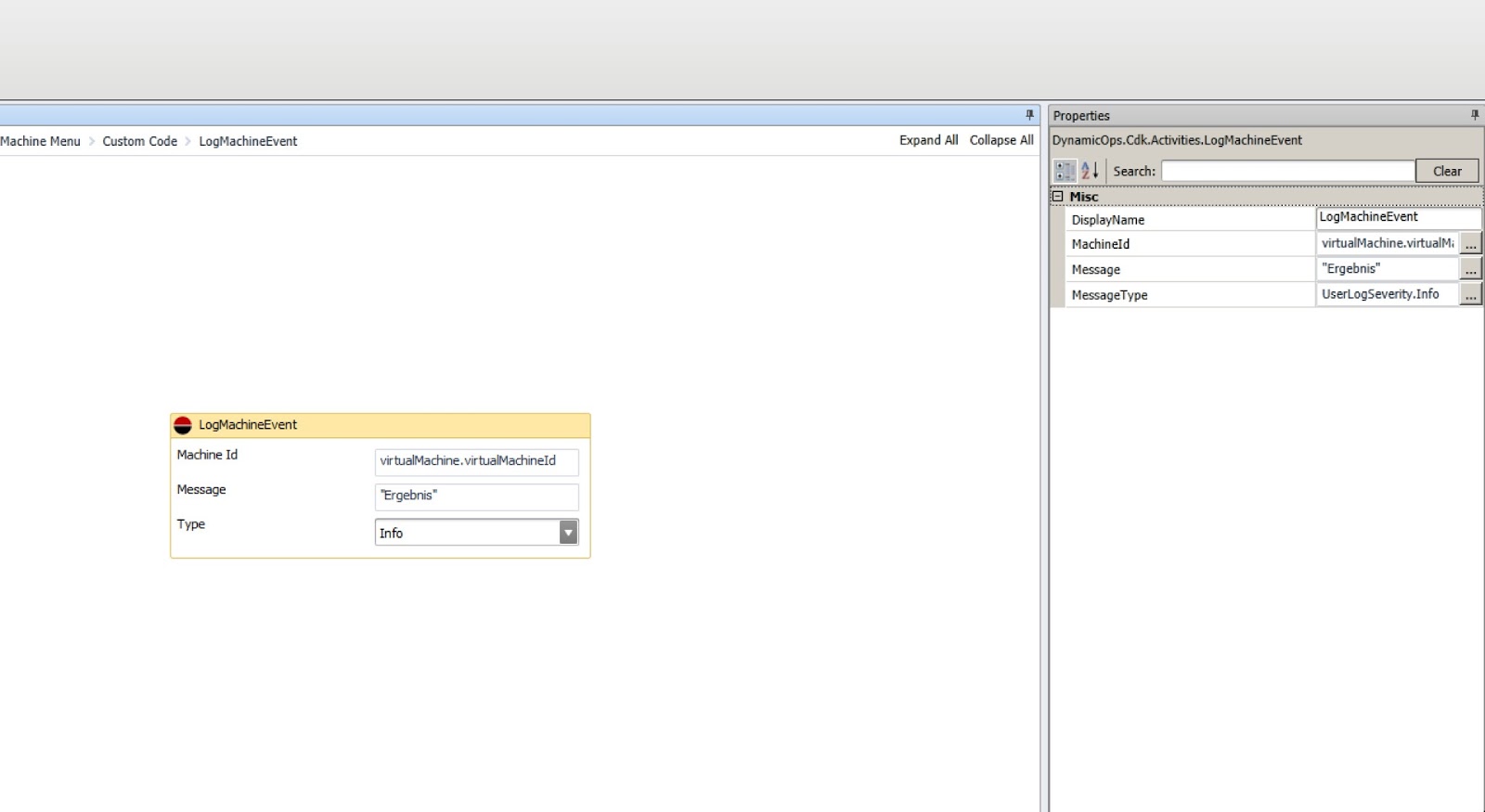
In my case the word "Ergebnis" (german for result) should be shown as info log message in the user´s selfservice portal. After uploading and xml/blueprint submission I was able to select the "Invoke vCO" option:

and received the result in my "recent events" log:

So just try it and it will become the perfect match :)
Subscribe to:
Posts (Atom)